Payments
What are payments?
Payments in Kareroo are payments made toward invoices, either partially or in full.
How do I record a payment?
To record a payment, go to Invoices and find the invoice you wish to record a payment for.
There is 3 action buttons for each invoice, the 'dollarsign' icon is the button for recording payments. Select it, and a popup will appear with a list of pre-filled fields.
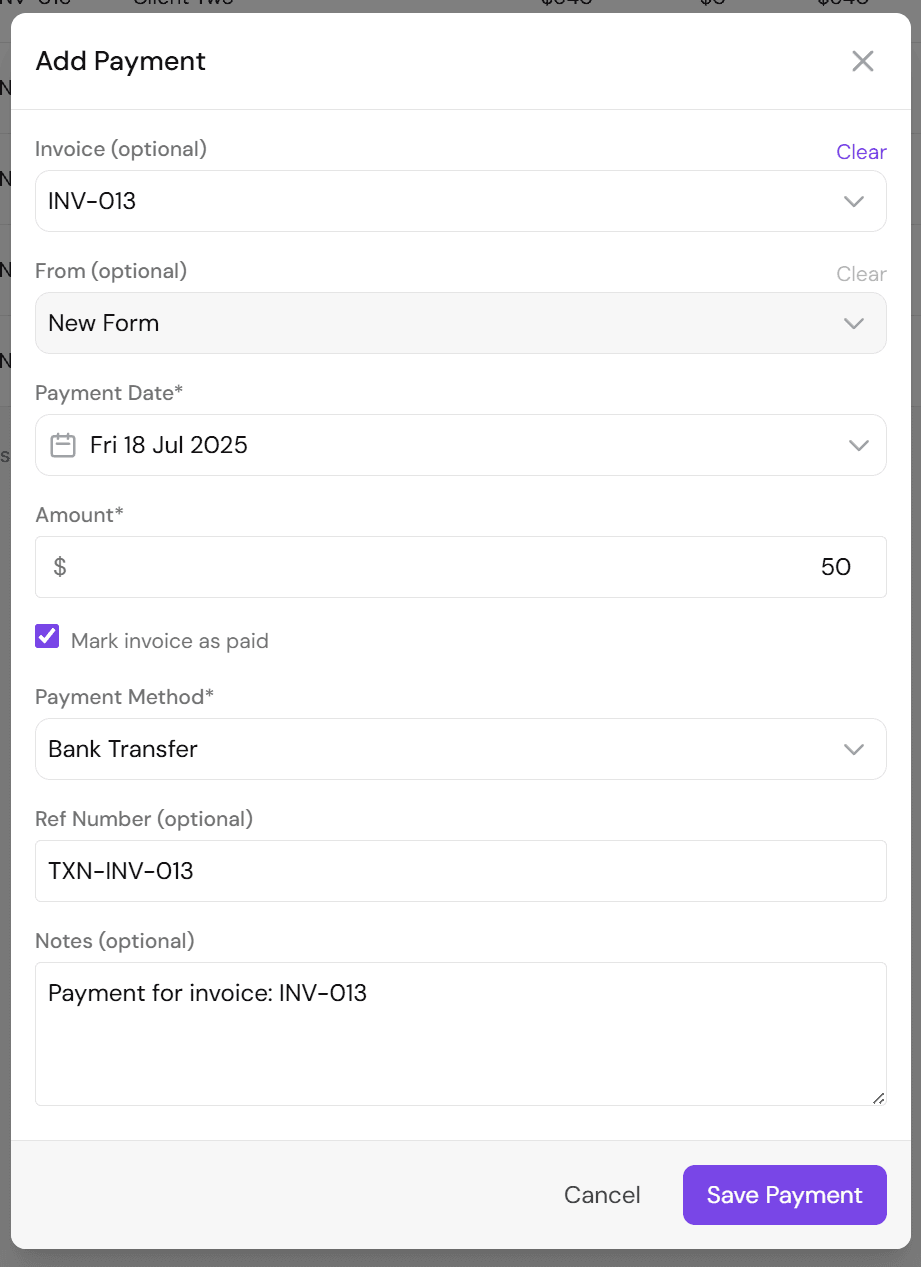
Most fields should already be pre-filled, you only need to check them to make sure they are correct before saving. However, you will want to focus on the "Amount" field and the checkbox underneath it. These are the two fields that affect your business the most.
The amount field dictates the amount recorded for this payment, and the checkbox dictates whether or not to mark the invoice as paid in full. Invoices that have payments recorded but are not marked as paid display as "Partially Paid".
Fields
Invoice
The invoice field is a dropdown that allows you to select the invoice to record the payment against. Selecting an invoice will pre-fill the other fields.
You can clear the selected invoice using the 'clear' button above the top right of the invoice dropdown.
You can type into this dropdown to filter the options displayed.
From (optional)
The from field is a dropwdown that is usually controlled by the invoice dropdown. However, if you have not selected an invoice and are just recording a payment from someone you can type their name or select a client to save the payment for.
You can clear the selected client using the 'clear' button above the top right of the 'from' dropdown.
Payment Date
The payment date field is a date picker that will be set to today's date by default but can easily be changed.
Amount
The amount field will be set to 0 by default, but will populate automatically if an invoice is selected.
When an invoice is selected, the balance of an invoice will automatically populate into the amount field. If an invoice already has payments recorded against it, then a 'Paid' and 'Balance' amount will appear above the top right of the field. The balance amount is what will populate the field.
The amount can be manually changed, to any number, higher or lower than the balance.
If you select another invoice, the amount will be overwritten to be the new invoices balance.
Mark invoice as paid
The 'Mark invoice as paid' checkbox will mark the invoice as paid in full when the payment is saved if it is checked.
If unchecked, unpaid invoices with payments made toward them will display as 'Partially Paid'.
Ref Number (optional)
The ref number field is a simple text field that allows you to add a reference number to the payment.
When an invoice is selected, the ref numner will populate automatically as:
TXN-INV-001Notes (optional)
The notes field is a simple text field that allows you to add a note to the payment.
When an invoice is selected it will populate as:
Payment for invoice: INV-001