Send An Invoice
How do I send an invoice?
To send an invoice, go to the Invoices Table or go to a specific client and then the invoices tab. Select the invoice you wish to print, and wait for the edit invoice page to load.
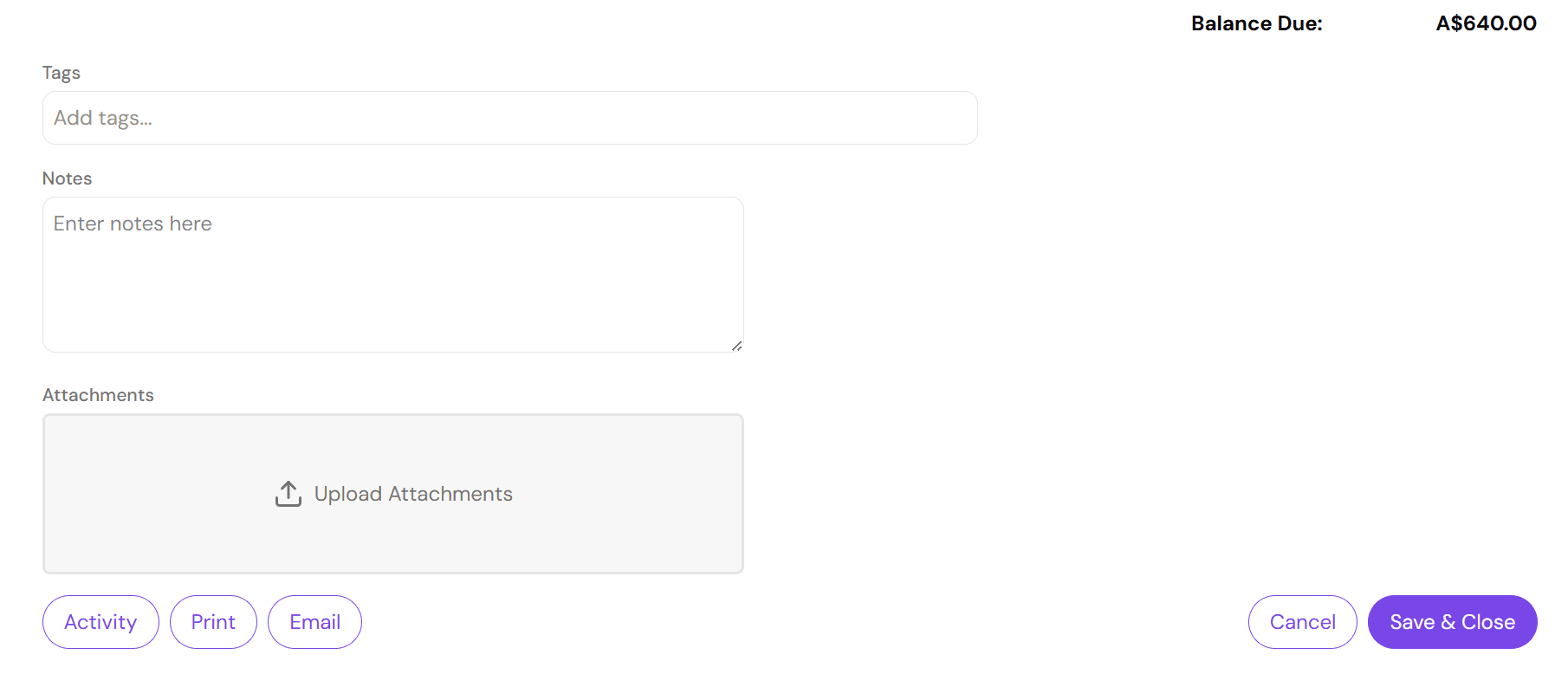
At the bottom left you will see an "Email" button. Press "Email", this will open a popup with a pre-filled list of fields.
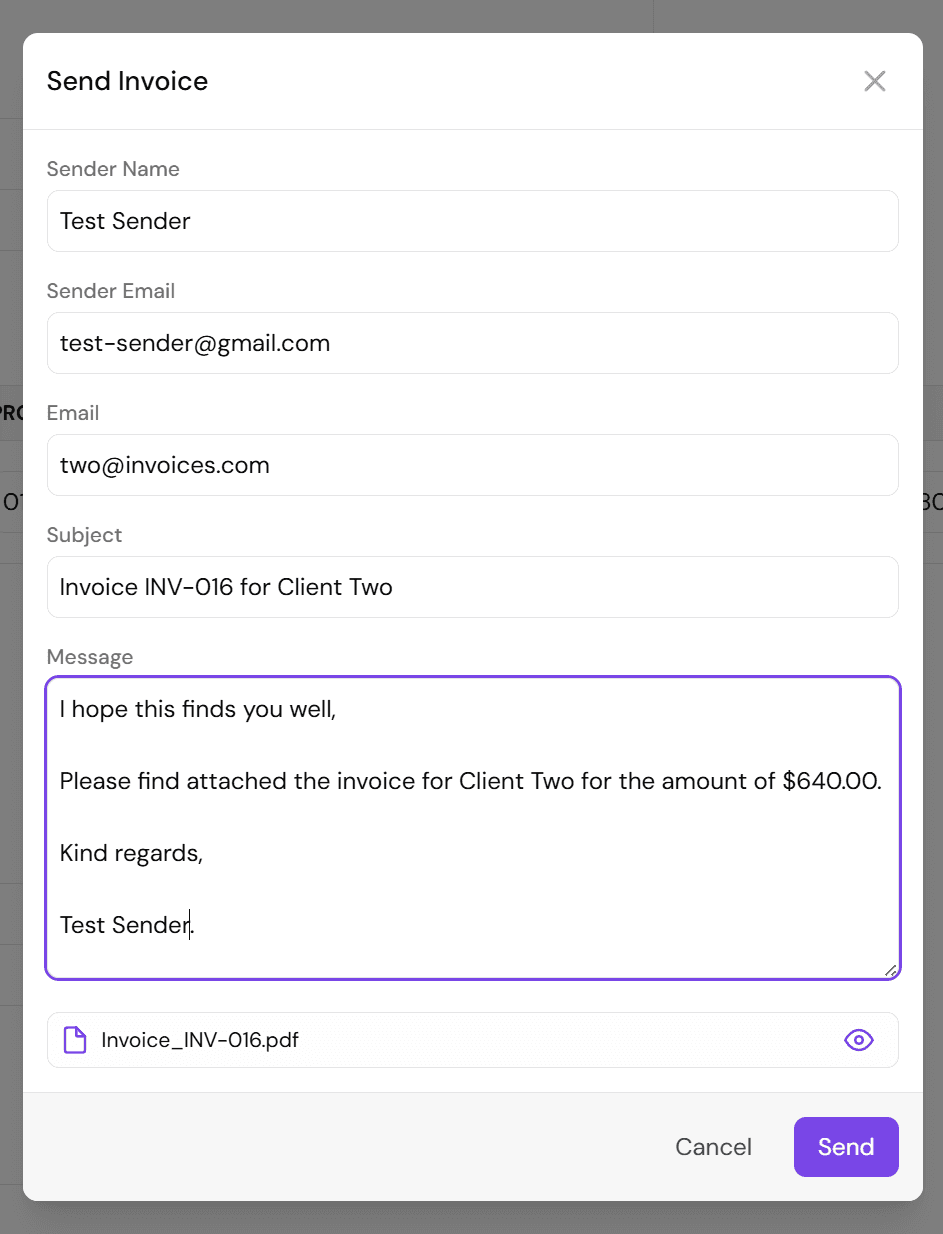
From here, you can simply press 'Send', although we advise checking each field to make sure it looks correct before sending.
Please note, printing and emailing uses the saved details from the database, not the current details from the form. So if you have modified any details, make sure to save the invoice before sending.
Fields
Sender Name
This is the name that will appear as the sender of the email, generally your name or your business name.
Sender Email
This is the email that will appear for replying to. The actual sender email will appear as 'your-name@invoices.kareroo.com.au'.
This is the email the invoice is being sent to, usually the plan manager or client themselves.
Subject
This is the subject line of the email, by default this will be set to:
'Invoice **Invoice Number** for **Client Name**'Message
This is the body of the email, currently sent as plain text with HTML email templates coming in a future update.
By default this will be set to:
'I hope this finds you well,

Please find attached the invoice for **Client Name** for the amount of $**Invoice Total**.

Kind regards,

**Your Name**.'
Attachment
This is a PDF version of the invoice, generated using the currently saved details for the invoice. It can be previewed by pressing the 'eye' icon.
